
101 Excel Macros Add-Ins
101 Excel Macros. TRILOGY – 3 Excel Add-Ins (.xlam)

How to activate an Excel Add-In?
- Download Free 1st Add-In Macros – Sheets
- Save file on local drive.
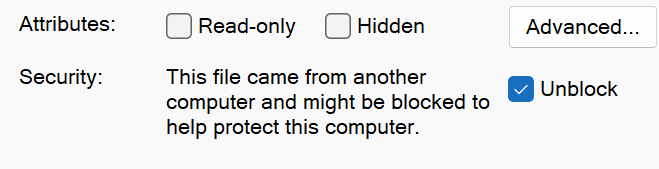
- Unblock file on your computer
-
- Right click on file
- Select Properties
- Click Unblock
-
- Activate relevant file in Add-ins in your Excel
- Open Excel
- Select Options
- Select Add-ins
- Manage >Add-ins >Go

- Browse and find and select relevant file
#1st Excel Add-In – Sheets

| 1 | Add many |
| 2 | Delete all |
| 3 | Delete empty |
| 4 | First worksheet |
| 5 | Last worksheet |
| 6 | Sort worksheets |
| 7 | Table of contents |
| 8 | With back arrows |
| 9 | Delete all arrows |
| 10 | Without back arrows |
| 11 | Delete links |
| 12 | Hide all |
| 13 | Unhide all |
| 14 | Protect all |
| 15 | Protect selected |
| 16 | Unprotect |
| 17 | Break passwords |
| 18 | Selection to pdf |
| 19 | All worksheets into 1 pdf |
| 20 | Every worksheet as a separate pdf file |
| 21 | Disable GETPIVOTDATA |
| 22 | Enable GETPIVOTDATA |
| 23 | Hide subtotals |
| 24 | Show subtotals |
| 25 | Refresh all PivotTables |
| 26 | Select clicked row |
| 27 | Select clicked row and column |
| 28 | Turn off rows/columns selection |
Protection Section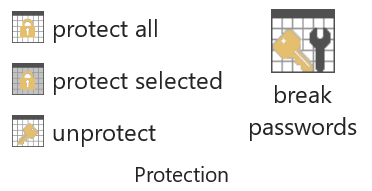
#2nd Excel Add-In – Cells

| 29 | Lock 1st row |
| 30 | Unlock 1st row |
| 31 | Filter from selection |
| 32 | Clear filter |
| 33 | Unhide columns |
| 34 | Unhide rows |
| 35 | Unhide rows and columns |
| 36 | Close all opened groups |
| 37 | Insert rows |
| 38 | Insert columns |
| 39 | Sort columns |
| 40 | Empty rows |
| 41 | Empty columns |
| 42 | Excess spaces |
| 43 | Convert Polish characters |
| 44 | All lower |
| 45 | All capital |
| 46 | First letter capital, rest lower |
| 47 | Every first letter capital |
| 48 | Cells with errors |
| 49 | Words with errors |
| 50 | Turn on checking while typing |
| 51 | Turn off checking while typing |
| 52 | Only days |
| 53 | Only months |
| 54 | Only years |
| 55 | Only dates (remove time) |
| 56 | Only time (remove dates) |
| 57 | Calendar |
| 58 | Turn on while yellow cell is clicked |
| 59 | Turn off while yellow cell is clicked |
| 60 | All digits to Arabic |
| 61 | All digits to Roman |
| 62 | Delete the part of a number after the decimal point |
| 63 | Delete the part of a number before the decimal point |
| 64 | Convert negative values to positive values |
| 65 | Convert positive values to negative values |
| 66 | Highlight the differences between the 2 columns |
| 67 | Highlight the differences between the 2 rows |
| 68 | Max value |
| 69 | Min value |
| 70 | Lower than given value |
| 71 | Higher than given value |
| 72 | Every cell with given value |
| 73 | All empty cells |
| 74 | Change all empty cells to zeros |
| 75 | All shapes and buttons |
| 76 | All cells with comments |
| 77 | All cells with spaces |
| 78 | All cells with formulas |
| 79 | Add $ to all formulas in selection |
| 80 | Remove $ from all formulas in selection |
| 81 | Convert formulas to values |
| 82 | Add IFERROR = 0 to all formulas in selection |
| 83 | Add IFERROR = to all formulas in selection |
| 84 | Index on |
| 85 | Index off |
| 86 | Index off |
| 87 | Degrees off |
#3rd Excel Add-In – Files

| 88 | Type RGB |
| 89 | Delete user styles |
| 90 | Column letter/nr |
| 91 | Active workbook as an attachment |
| 92 | Selected sheets as attachments |
| 93 | Selection/range as an email body |
| 94 | Scope selected sheets into a new workbook |
| 95 | Move selected sheets into a new workbook |
| 96 | Save active workbook |
| 97 | Save copy of active workbook |
| 98 | Close all saved |
| 99 | Close all unsaved |
| 100 | List paths to all files from folder |
| 101* | Unlock VBA project |

* 32-bit Excel 2010 and later for Windows.
If you are interested in getting a bundle of three Add-ins, click
‘Buy Now‘ button below.